
Sign in with the Microsoft Authenticator app
The following information describes the experience of using the Microsoft Authenticator app for two-step verifications. There are two different ways to use the app. You can receive push notifications on your device, or you can open the app to get a verification code.
To sign in with a notification from the Microsoft Authenticator app
- Sign in to an application or service such as Microsoft 365 using your username and password.
- Microsoft sends a notification to the Microsoft Authenticator app on your device.
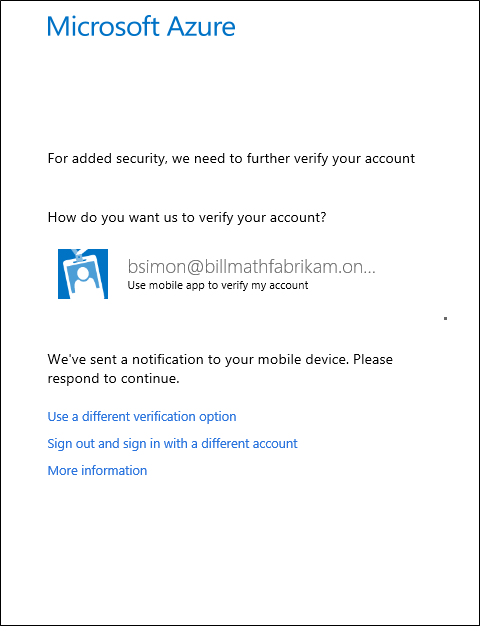
- Open the notification on your phone and select the Verify key. If your company requires a PIN, enter it here. You should now be signed in.
To sign in using a verification code with the Microsoft Authenticator app
If you use the Microsoft Authenticator app to get verification codes, then when you open the app you see a number under your account name. This number changes every 30 seconds so that you don't use the same number twice. When you're asked for a verification code, open the app and use whatever number is currently displayed.
- Sign in to an application or service such as Microsoft 365 using your username and password.
- Microsoft prompts you for a verification code.
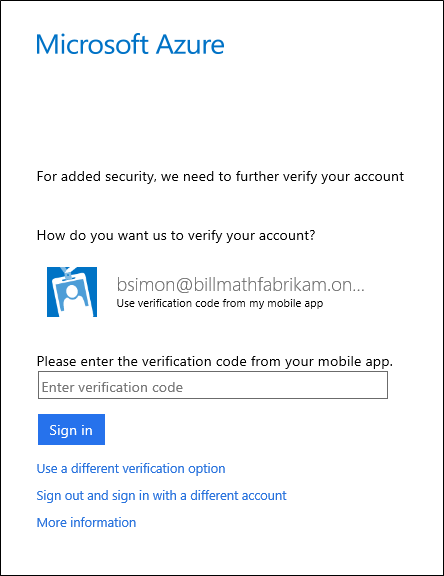
- Open the Microsoft Authenticator app on your phone and enter the code in the box where you are signing in.
Comments
0 comments
Article is closed for comments.